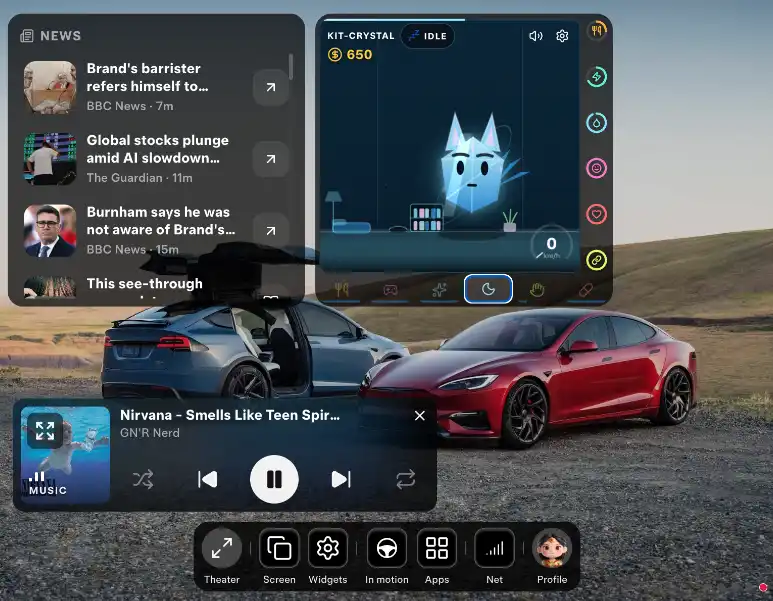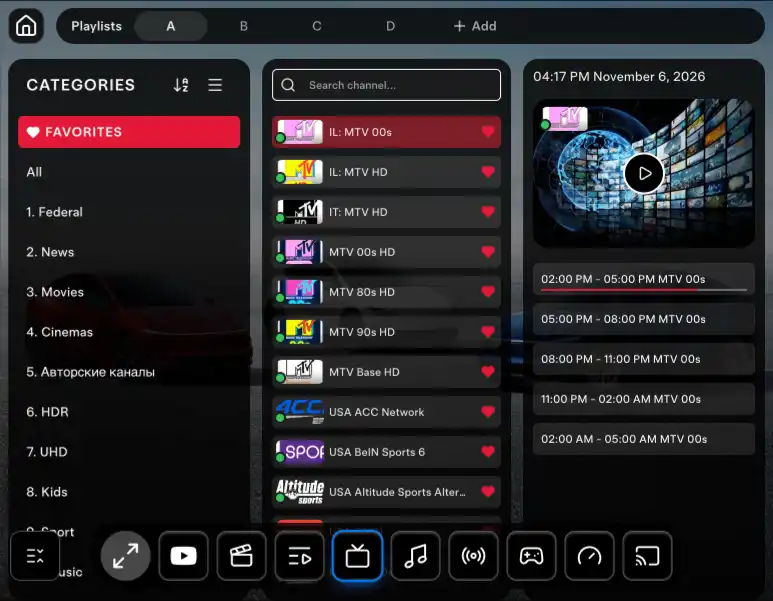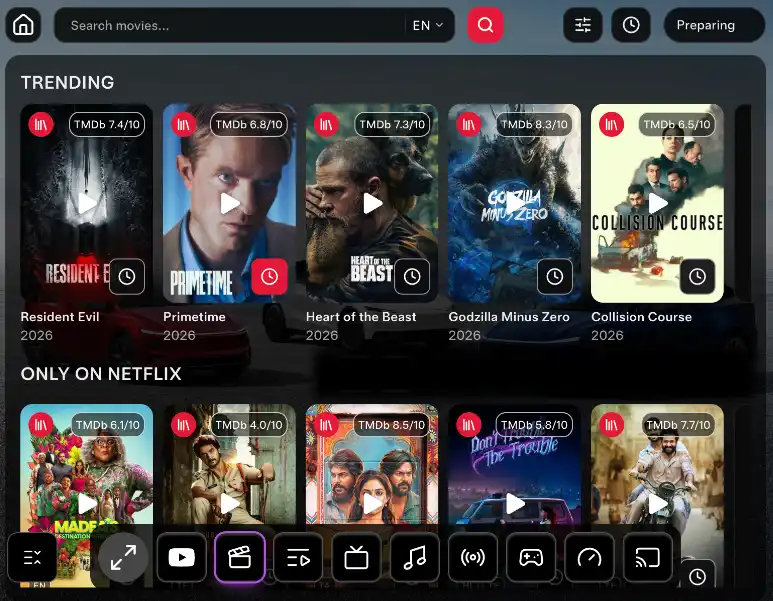
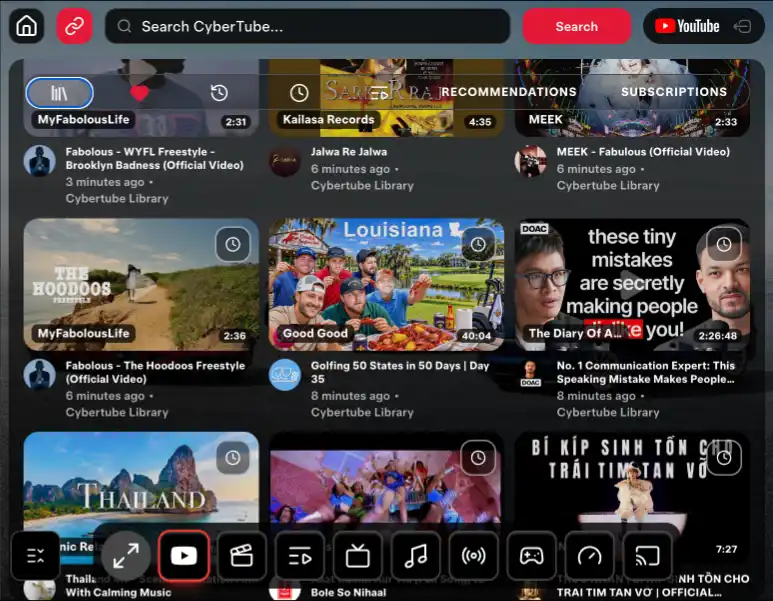
You can watch YouTube in Tesla while the car is moving. CyberTube is the YouTube web app inside CyberDash. It opens in the native Tesla browser, on the front screen and on the rear screen, and it can stay there after the car leaves the parking spot. You do not add a Fire Stick, an HDMI box, a phone mount, or any other device to keep YouTube on the screen once the car is on the road.
While the car is parked, YouTube is available as soon as you sign in. Open the browser, open CyberTube, and play. A Pro plan unlocks video in motion, so that same playback can stay available while the car is moving. You do not close the page when you put the car in gear. You do not switch to another app. You do not turn on a separate motion mode. The session you started while parked is the session that can continue on the road. Watching while you drive is unsafe. Use it only when that is legal and you can keep your attention on the road. Passengers can watch. The driver watches the road.
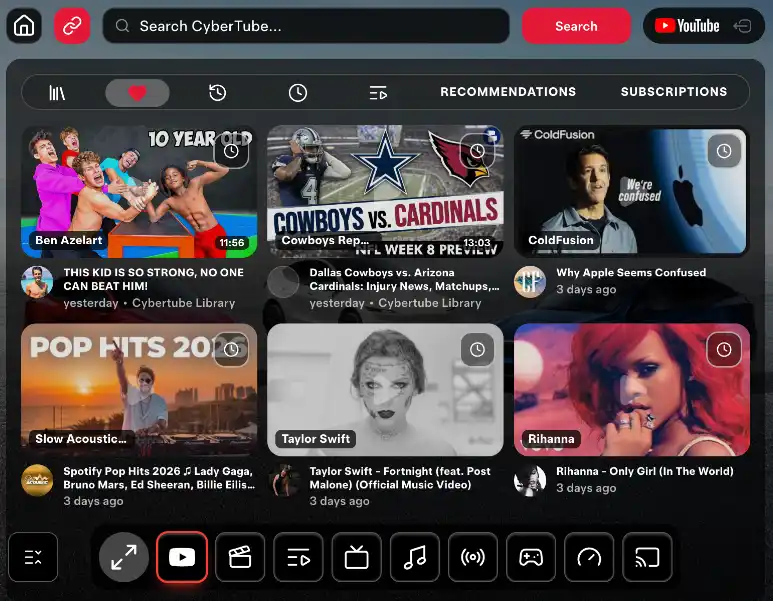
YouTube while the car is moving
In motion means the car is no longer parked. The wheels are turning: you are in town, on a highway, stopped in traffic, or moving again, and YouTube can still be on the Tesla display. Channels, search, playlists, and fullscreen are the same as when the car was parked. It is still your YouTube account, still the browser the car already has, and still CyberTube. Nothing new has to be installed because the car started moving.
On the front screen
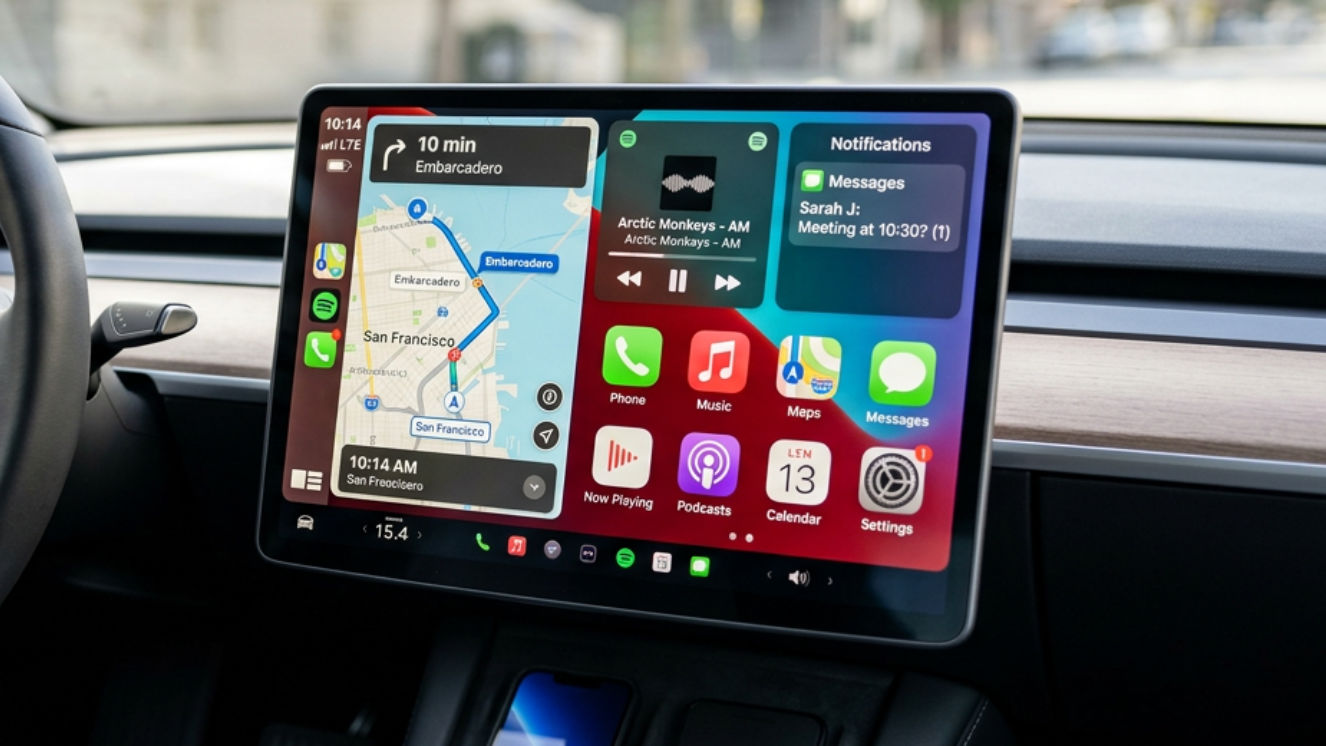
On the front screen, video in motion means the center display can keep showing YouTube for the drive. Use that only when it is legal and you can still focus on the road. It is not permission to watch the screen instead of the traffic. If people in the car want to watch for the whole trip, the rear screen is the place for them, on a Tesla that has one. Pro keeps YouTube available in motion on that rear display as well. Passengers watch. The driver watches the road.
No extra device when the car moves
You do not add a device at the moment the car starts moving. A Fire Stick, an HDMI box, a phone on a mount, and a CarPlay adapter are not how YouTube stays on during the drive. Nothing is installed in the car, there is no jailbreak, and opening the page does not void the warranty. Pro on the CyberDash account is what keeps YouTube available while the car is moving. Pro is $11.99 a month or $99.99 a year. After you sign up you get 24 hours of test access, so you can open CyberTube on your own car before you pay.
Internet during the drive
The video still needs internet while the car is moving. Premium Connectivity, a phone hotspot, or any other working data link is enough. Video in motion uses the same YouTube stream as video while parked. If the signal drops on the road, the picture drops with it. The app does not download the video into the car and does not create a connection. When you park again, the same CyberTube page is still open. You can choose another video, return to a playlist, or leave the screen as it is.
How to watch YouTube in Tesla in motion
Start while the car is parked, then drive. The steps below are the whole setup, and you do them once. With Pro, you do not repeat them when the car starts moving. Nothing is installed in the car. You use the browser Tesla already includes.
Park first. Open the native Tesla browser, go to https://www.cyberdash.net/, sign in, and open CyberTube. Sign in with the YouTube account you already use. Start the video while the car is still parked, so you can see the picture and hear the sound before you move. Then, with Pro, drive. You do not reopen the browser for a drive mode. You do not tap a switch labeled motion. You do not plug anything in. YouTube can stay available on that same screen while the car moves.
During the drive
During the drive the page behaves like the parked page. You can be moving, stopped at a light, or stopped in traffic, and the playback can remain that same video. If you park for a minute and pick a different video, that new video can stay available when you move again, still with Pro. Fullscreen still uses the Tesla display. The browser is still the car’s browser. CyberTube is still the page inside it. If you are driving, keep your eyes on the road. Video in motion is not a reason to watch the screen instead of the traffic.
When the drive ends and you park, you do not have to undo a motion setting. The page can stay open, or you can close the browser. The next drive is the same: open CyberTube if it is not already open, and Pro again keeps YouTube available while the car is moving. One CyberDash account does this in the cars listed later on this page. You do not turn motion on separately for the front screen and the rear screen.
- Open the native Tesla browser. Do not install a second browser.
- Go to https://www.cyberdash.net/ and create an account, or sign in if you already have one.
- After sign-up you get 24 hours of test access. That is enough to open CyberTube and confirm YouTube on your own car.
- Open CyberTube from the CyberDash dashboard. Sign in with the YouTube account you already use. CyberTube is not YouTube Premium and does not replace that login.
- Search, open a channel, or play a playlist. Full screen uses the Tesla display.
- A Pro plan unlocks video in motion for YouTube, so playback can stay available while the car moves. Pro is $11.99 a month or $99.99 a year. The 24-hour test is how you try it before you subscribe.
- If you are driving, keep your eyes on the road. Video in motion is not a reason to watch the screen instead of the traffic.
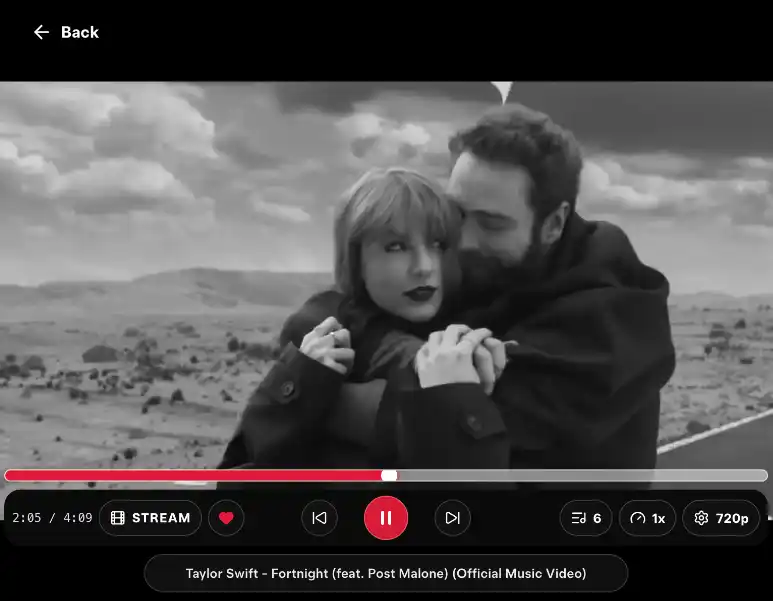
If the page does not load, check that the car has internet. CyberTube streams from YouTube, so a dead connection means no video. Premium Connectivity, a phone hotspot, or any working data link is enough. You do not need a special firmware build. You need a Tesla that already has the browser.
What YouTube in motion needs
You need a Tesla with the native browser, an internet connection, and a CyberDash account. You do not need extra hardware, and you do not change the car.
- Your own YouTube account. Subscriptions, playlists, and history stay on that account. CyberDash does not include YouTube Premium.
- A CyberDash account. The 24-hour test starts after sign-up. After the test, Pro is the plan that keeps YouTube available in motion.
- Internet in the car. Video in motion uses the same stream as video while parked. If the signal drops, the picture drops with it.
- The native browser. Open cyberdash.net there. Do not sideload an app, do not jailbreak, and do not install custom firmware.
Video in motion is a Pro feature for YouTube, and the same kind of Pro feature exists for IPTV. It means the video can remain available while the car is moving, not only while it is parked. Parked playback and playback on the road are the same CyberTube page and the same YouTube stream. After the 24-hour test, Pro is what keeps YouTube available once the car is on the road. It does not mean the driver should watch it. Watching while driving is unsafe. Use YouTube in motion only when it is legal and you can focus on the road.
On a drive, that looks like this. You started a video in a parking spot. You pull out. With Pro, the video can stay on the front screen while you are moving, and it can stay on the rear screen for passengers. You do not get a second player, a second login, or a second device for the moving part of the trip. If the internet holds, the picture holds. If you are the driver, you watch the road the whole time. The screen being available is not the same thing as looking at it.
YouTube in motion without extra devices
The center display already runs a browser. That browser is the player. CyberTube runs inside it. There is no stick to power, no HDMI cable to hide, no second remote, and no phone clamped to the dash just to watch YouTube.
Extra devices showed up because some cars had no usable screen. A Tesla display is already a screen. Adding another one does not make YouTube in motion work better. It adds a cable, a mount, and something else to charge.
- No Fire Stick.
- No HDMI box and no Chromecast-style dongle on the dash.
- No phone mount and no tablet mount for YouTube. Your phone can stay in your pocket. Screen mirroring is a different CyberDash app, and it is not required for YouTube.
- No CarPlay adapter.
- No jailbreak, no sideload, and no custom Tesla firmware. Opening a website does not void the warranty.
Open the browser, sign in, and YouTube in motion is CyberTube. That is the whole setup.
This stays true while the car is moving. When you leave the parking spot, you still do not plug in a stick, clamp a phone to the dash, or switch to another box. YouTube in motion is the browser page that is already open. If CyberTube is on the screen while you are parked, that is the page Pro can keep available for the drive. The phone can stay in a pocket for the whole trip.
Can you use a Fire Stick for YouTube in motion?
A Fire Stick is a small Amazon player made for a television. It expects an HDMI port, its own remote, and a power plug. The Tesla center screen is not that television. It does not have an HDMI input you plug a stick into so the stick becomes the car display. You cannot put a Fire Stick into the Tesla browser and have the stick run YouTube in motion.
Some owners still try. They look for a power socket, a mount, and a place to put a second picture in the cabin. That gadget sits in the car on its own. It is not connected to CyberTube, it does not use the Tesla browser, and it is not how YouTube in motion works on this site. It also means another remote, another login, and another object near the wheel.
Leave the stick at home
You do not need a Fire Stick. You do not need any extra device. YouTube in motion on Tesla is the browser the car already has, plus CyberTube. If you already own a Fire Stick, leave it at home for this. It will not start CyberDash, and CyberDash will not ask for it.
The same is true of HDMI boxes, generic Android sticks, and dongles sold as “YouTube for Tesla.” They are optional clutter. The car screen, the browser, and a CyberDash account are the setup. Nothing else has to be bought, paired, or mounted.
YouTube in motion on the rear screen
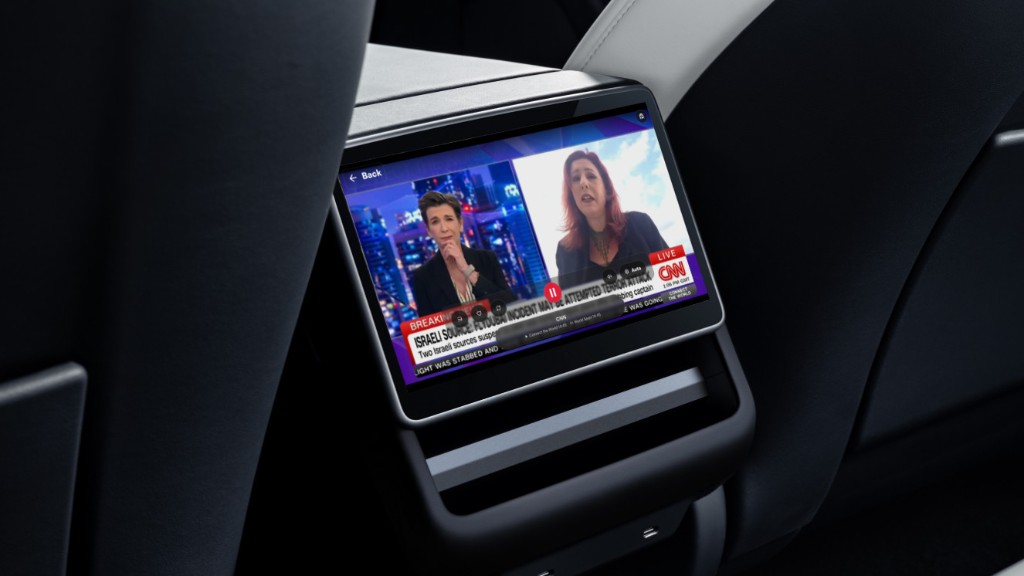
On a Tesla with a rear display, passengers can watch YouTube in motion back there. Start the rear screen while the car is parked, from the front screen.
- Park the car.
- On the front screen, open the Tesla controls and turn on theater mode.
- On the rear screen, start the rear theater. CyberTube can then play on that display.
- The front screen can leave the browser. The rear screen can keep playing.
- When the trip continues, the rear theater can keep going. Pro is what keeps YouTube available in motion, including on that rear display. Passengers watch. The driver watches the road.
Theater mode is a Tesla control, not something CyberDash installs. You are still in the native browser. The rear screen does not need a Fire Stick either.
Then the car can move. With Pro, YouTube can stay available on the rear display for the drive, including after the front screen has left the browser and gone back to the Tesla driving view. Passengers can keep watching while the car is moving. You do not start the rear screen again at every stop, and you do not add a Fire Stick to the rear display because the car is on the road. One account covers both screens. The driver watches the road.
YouTube in motion on Model 3, Model Y, Model S, Model X, and Cybertruck
CyberTube is built for Model 3, Model Y, Model S and Model X from 2021, and Cybertruck. It is optimized for the AMD Ryzen cars, Hardware 3 and Hardware 4. Intel cars can still open it. The browser is slower on Intel, so pages and video take longer to start. That is the limit of that computer, not a missing stick or box.
Same setup on every model
Video in motion works the same way on these cars. You do not turn it on differently for a Model 3, a Model Y, a Model S, a Model X, or a Cybertruck, and you do not add a device because the model changed. Sign in on the browser of the car you are sitting in. Pro on that account keeps YouTube available while that car is moving. An Intel car can do this too. The page and the video simply take longer to start. That delay is the computer, not a missing stick, and it does not change how video in motion works.
You do not buy a different device for a different model. The same CyberDash account works in these cars. Sign in on the browser of the car you are sitting in.
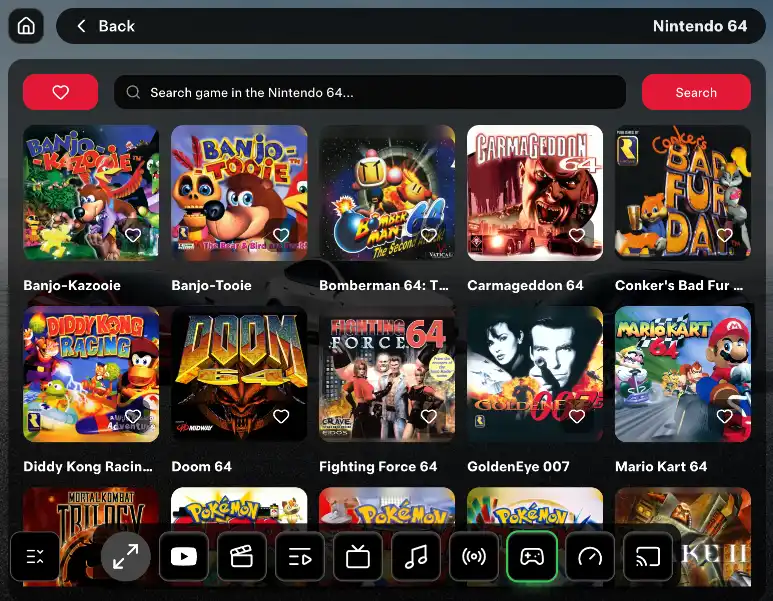
This page will not give you a jailbreak, YouTube Premium inside the subscription, Netflix inside CyberTube, or permission to watch video at the wheel. CyberTube plays YouTube through the account you already have. Other CyberDash apps cover IPTV, movies, console games, radio, and SoundCloud. This guide is only YouTube in motion.
FAQ: YouTube in Tesla in motion
How do I watch YouTube in Tesla in motion?
Open the native Tesla browser, go to https://www.cyberdash.net/, sign in, and open CyberTube. Sign in to YouTube with your own account. A Pro plan unlocks video in motion so YouTube can stay available while the car moves. Watching while you drive is unsafe. Use it only when that is legal and you can focus on the road.
Does YouTube keep playing in motion?
Yes, with Pro. Start the video while the car is parked. When the car moves, that same playback can stay available on the front screen and on the rear screen. You do not reopen the browser, turn on a motion mode, or add a device for the drive. It is the same YouTube stream as when the car is parked. If the internet drops, the picture drops. It is not a reason for the driver to watch the display. Passengers can use the rear screen. The driver watches the road.
Do I need a Fire Stick for YouTube in motion?
No. You do not need a Fire Stick, an HDMI box, a dongle, a phone mount, or any other extra device. YouTube in motion runs in the browser the Tesla already has. Your phone can stay in your pocket.
Can I use a Fire Stick in a Tesla for YouTube in motion?
A Fire Stick is built for a TV HDMI port, not for the Tesla browser. The car screen does not become a Fire Stick display when you bring a stick into the cabin. The stick would be a separate gadget that needs power, a mount, and its own remote. CyberTube does not use it. For YouTube in motion you leave the stick out and open cyberdash.net in the native browser.
Does YouTube in motion need a jailbreak?
No. You open a website. There is no jailbreak, no sideload, and no custom Tesla firmware. Opening CyberTube does not void the warranty.
Which Teslas play YouTube in motion?
Model 3, Model Y, Model S and Model X from 2021, and Cybertruck. AMD Ryzen cars (Hardware 3 and Hardware 4) are the best fit. Intel cars can open CyberTube too, with a slower browser. You use the same account in each of these cars. No extra device changes by model.
Does YouTube in motion work on the rear screen?
Yes, on cars that have a rear display. Park, turn on theater mode from the front screen, and start the rear theater. The rear screen can keep playing after the front screen leaves the browser, including in motion with Pro. That screen is for passengers. The driver watches the road. No Fire Stick is added to the rear display.
Do I need YouTube Premium for YouTube in motion?
No. You sign in with the YouTube account you already have. CyberDash does not include YouTube Premium, Netflix, or a bundle of other streaming apps. Subscriptions and playlists stay on your YouTube account.
Is there a 24-hour test of YouTube in motion?
Yes. After you create a CyberDash account you get 24 hours of test access, so you can open CyberTube on your car before you pay. Pro, which unlocks video in motion, is $11.99 a month or $99.99 a year.
Does YouTube in motion need internet?
Yes. The video streams over whatever internet the car has: Premium Connectivity, a hotspot, or another data link. Parked or in motion, no connection means no picture. You do not add a device to get that connection.