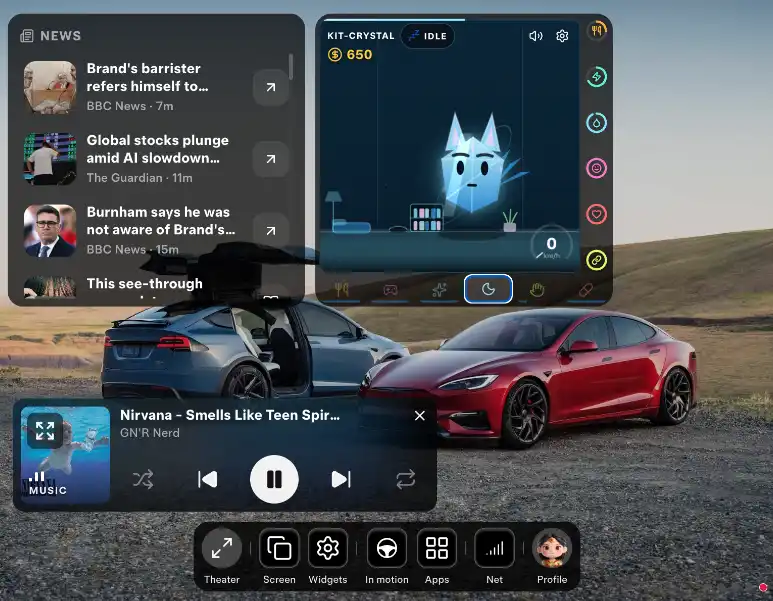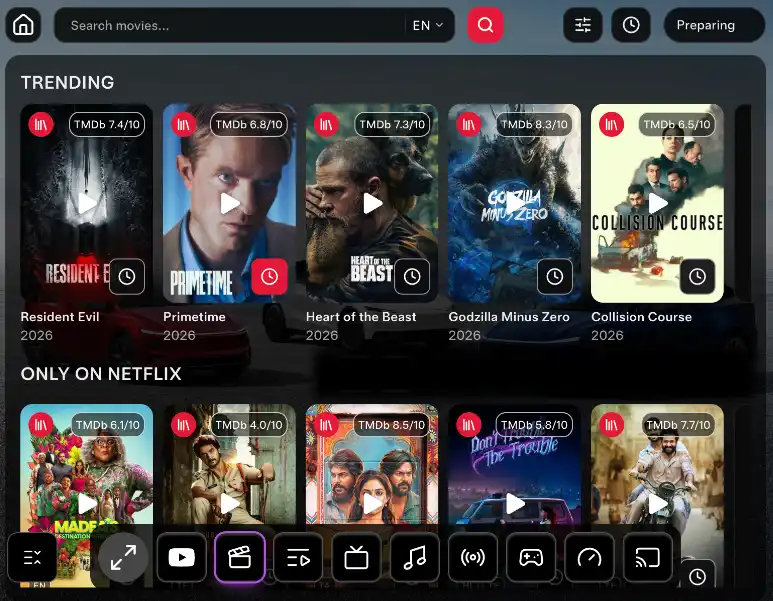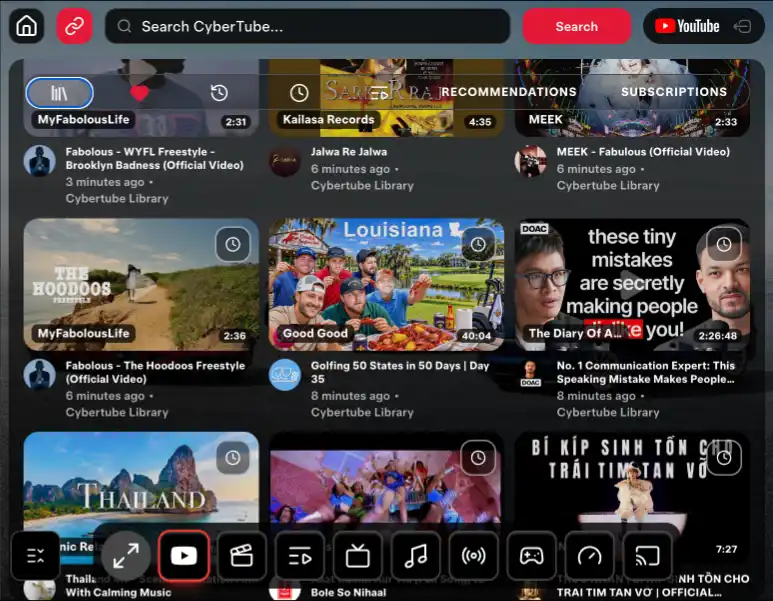
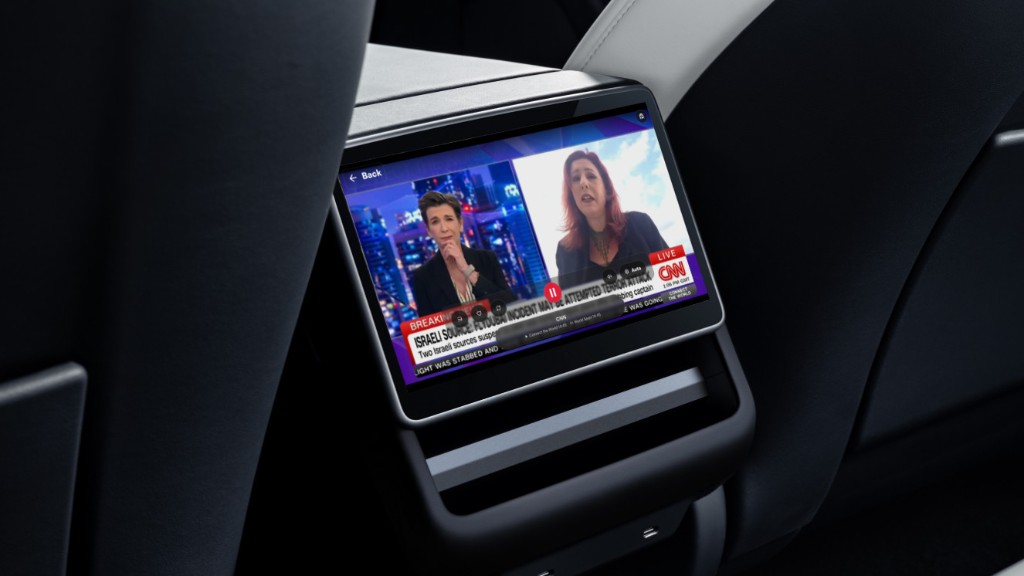
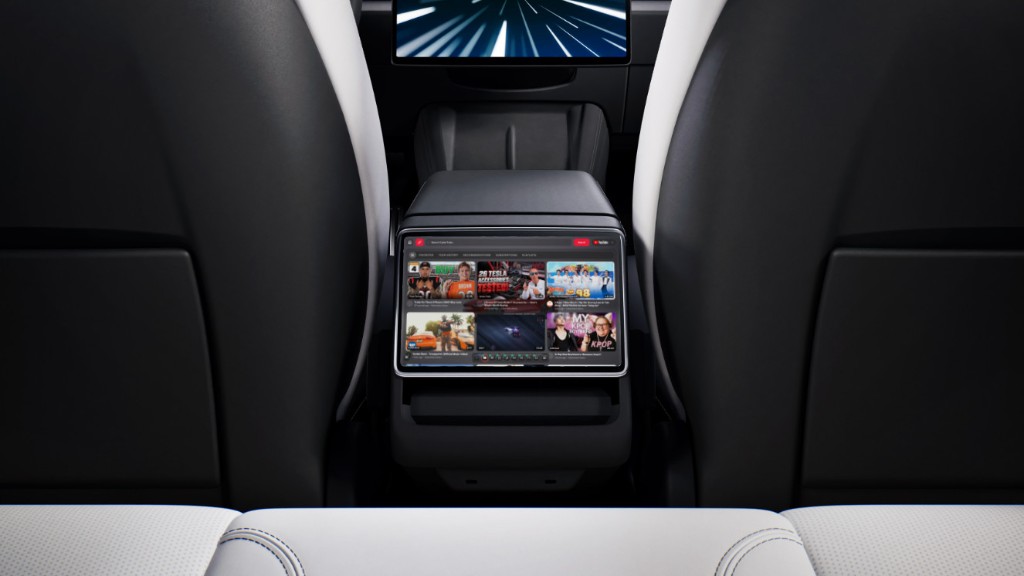
Passengers can run CyberDash on the rear Tesla screen. The rear display shows the same dashboard as the front screen: the browser UI, with the apps already on the account. Start while the car is in Park. After you drive, the rear screen can keep CyberDash, including if you close it on the front screen.
How to run CyberDash on the rear screen
The car has to be in Park. You do this in the browser Tesla already has. Nothing is installed in the car, and you do not add a Fire Stick.
- Park the car before you start.
- Open the native Tesla browser on the front screen and go to https://www.cyberdash.net/. Sign in if the dashboard is not already open.
- On the main CyberDash dashboard, press the full-screen button. That expands the view.
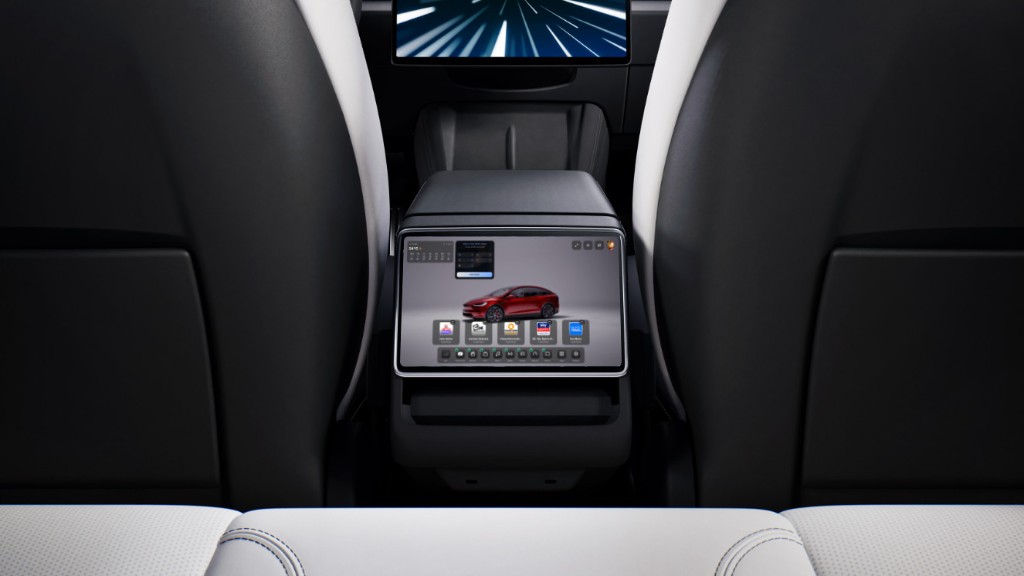
- On the rear screen, open the Tesla Theater app. The rear display then shows the CyberDash UI.
After the car starts moving
The rear screen keeps showing CyberDash for passengers once the car leaves Park. You can close CyberDash on the front screen. The rear screen stays on that UI. Passengers use the dashboard. The person driving watches the road.
What opens on the rear screen
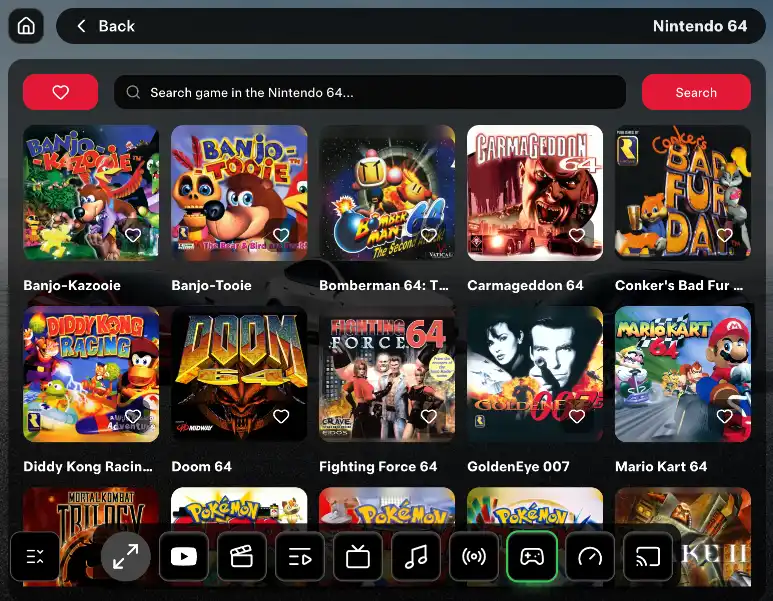
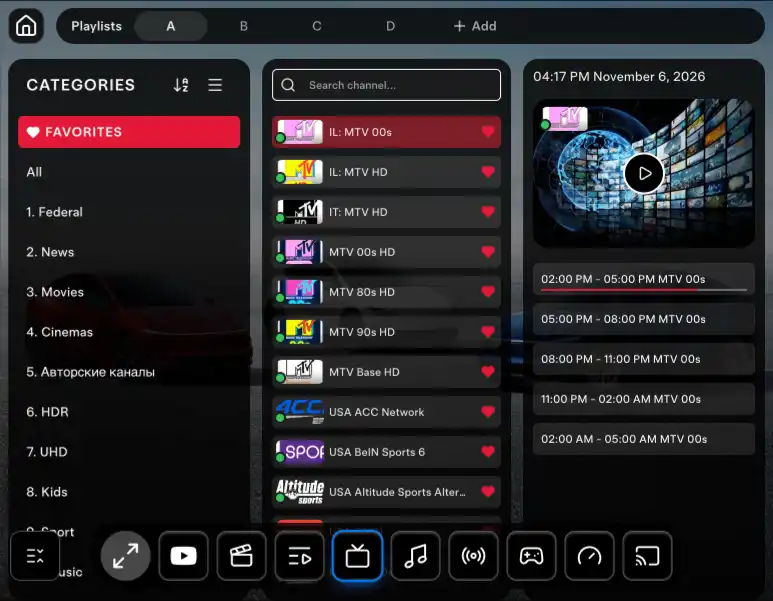
It is the same CyberDash dashboard, not a smaller remote. YouTube, IPTV, movies, console games, internet radio, and SoundCloud are the apps on that page. Video in motion and console games in motion still follow the Pro plan, the same as on the front screen. Passengers use the rear screen. The driver watches the road.
What you need
- A Tesla that has a rear screen.
- The car in Park when you press the full-screen button and open Tesla Theater.
- CyberDash open on the front dashboard, so the full-screen button is on that page.
- No Fire Stick, HDMI box, phone mount, or jailbreak. The rear screen uses Tesla Theater and the browser UI.
If the rear screen stays empty
Stay in Park. Press the full-screen button on the CyberDash dashboard again, then open Tesla Theater on the rear screen. The rear display follows that expanded view. A Tesla without a rear screen stays on the front display only.
FAQ: CyberDash on the rear screen
How do I put CyberDash on the rear screen?
Park. Open CyberDash on the front screen. Press the full-screen button on the dashboard. Open the Tesla Theater app on the rear screen. The rear display shows the CyberDash UI.
Does the rear screen stay on after I start driving?
Yes. Passengers keep CyberDash on the rear screen after the car leaves Park. You can close it on the front screen and the rear screen can keep running. The driver watches the road.
Do I need a Fire Stick for the rear screen?
No. The rear screen uses the Tesla Theater app and the CyberDash page already open in the car browser. You do not add a stick, an HDMI box, or a phone mount.
Which Teslas can do this?
Teslas that have a rear display. CyberDash itself runs on Model 3, Model Y, Model S and Model X from 2021, and Cybertruck. These rear-screen steps need that rear display and Tesla Theater.