
TV Shows on the Tesla screen
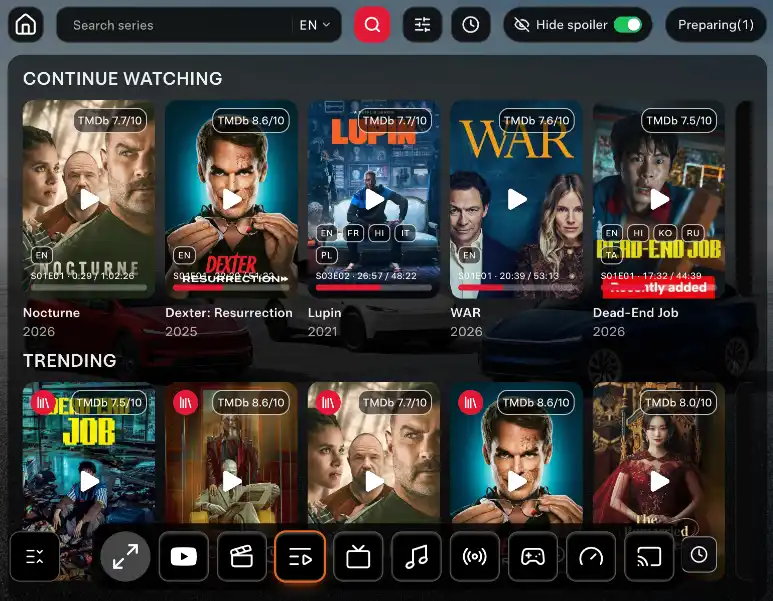
TV Shows gathers series from Netflix, Apple TV+, Disney+, and other platforms in one shared library on the Tesla screen — a web app inside CyberDash, on the front and rear screens.
24h free · then $11.99/mo or $99.99/yr
What you can do with series
Shared library
Series from several platforms sit in one library on the Tesla screen.Season, then episode
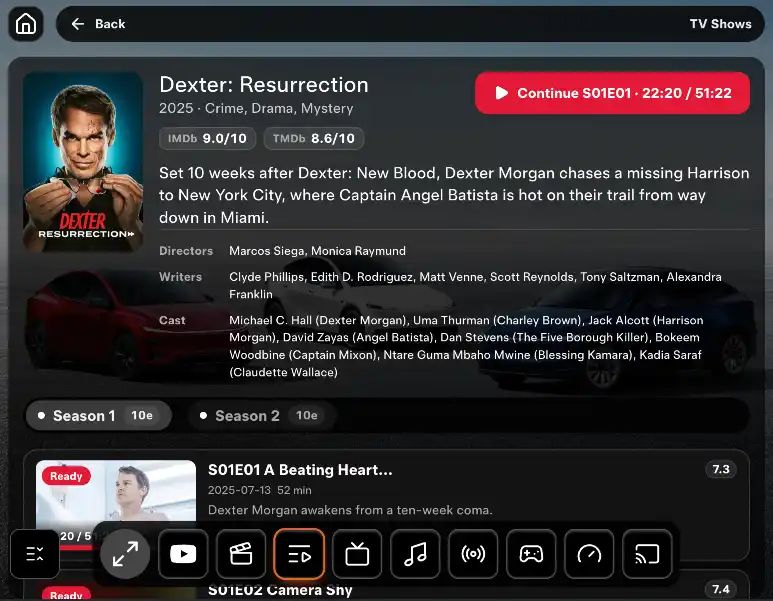
Open a show, choose a season, and select the episode to watch.Order a missing season
If the season is not there yet, order it. The download continues in the background.
TV Shows in Tesla in motion
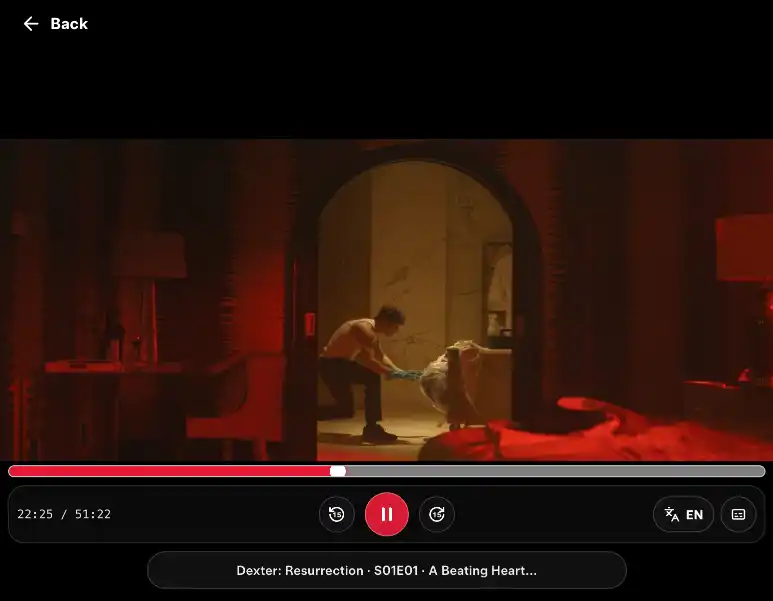
Choose a show from the shared library, open a season, and select an episode.








Series on the Tesla screen
Watching while you drive is unsafe. Use it only when it is legal and you can keep your attention on the road. Passengers watch. The driver watches the road.
How TV Shows works
- 1What TV Shows is
TV Shows brings together series from Netflix, Apple TV+, Disney+, and other platforms. Return to a favorite show or find a new release without signing in to each service separately.
- 2Season, then episode
Choose a show from the library shared by CyberDash users, open a season, and select an episode. If episodes are already there, select one to watch. Continue watching takes you back to where you stopped.
- 3Order a missing season
If a season is missing, tap Order season. It downloads in the background and then becomes available to everyone in the shared library. You can close the page while the download continues and follow it in Preparing. When it is ready, the episodes appear in that season.
- 4Front and rear screens
On the front screen, open TV Shows in Tesla’s native browser. For the rear screen, park the car, press the full-screen button on the CyberDash dashboard, then open Tesla Theater on the rear screen. Passengers keep the dashboard after you start driving and after you close it on the front screen. The driver watches the road.
- 5No extra device
You do not add a Fire Stick, an HDMI box, a phone mount, or any other device. TV Shows is a web app in the browser the car already has. Nothing is installed in the car.
- 6From the phone
Sign in on the phone with the same account you use in Tesla. With Pro, open TV Shows, choose a season, and tap Order season. You can close the page while the download continues, then open the show in the car. The episode still plays in the car browser.
- 7Pro and internet
Watching requires Pro. This is not a separate subscription to Netflix, Apple TV+, Disney+, or the other platforms, and you do not sign in to each one. Pro is $11.99 a month or $99.99 a year. After you sign up you get 24 hours of test access. The episode still needs internet while it plays: Premium Connectivity, a phone hotspot, or any other working data link is enough.
FAQ: TV Shows in Tesla
What is the TV Shows section?
TV Shows brings together series from Netflix, Apple TV+, Disney+, and other platforms. Return to a favorite show or find a new release without signing in to each service separately. Choose a show from the library shared by CyberDash users, open a season, and select an episode. If a season is missing, order it: it downloads in the background and becomes available to everyone. Watch history and playback progress stay in your account.
How do I use TV Shows?
Open TV Shows from the bottom bar. Watching requires Pro. Find a show, open its card, and choose a season. If episodes are available, select one to watch. If the season is missing, tap Order season. You can close the window while it downloads in the background; follow progress in Preparing. Available episodes will appear in the season. Continue watching takes you back to where you stopped.
Do I need a subscription to each platform?
No. You do not sign in to each streaming service separately. TV Shows uses the library shared by CyberDash users. Pro on CyberDash is what unlocks watching.
Can I order a season from my phone?
Yes. Sign in on the phone with the same account you use in Tesla. With Pro, open TV Shows, choose a season, and tap Order season. You can close the page while the download continues, then open the show in the car.
Watch the next episode in Tesla
Activate Pro for TV Shows
24 hours free. Then from $8.33/mo.