
Xbox Cloud Gaming in Tesla in motion
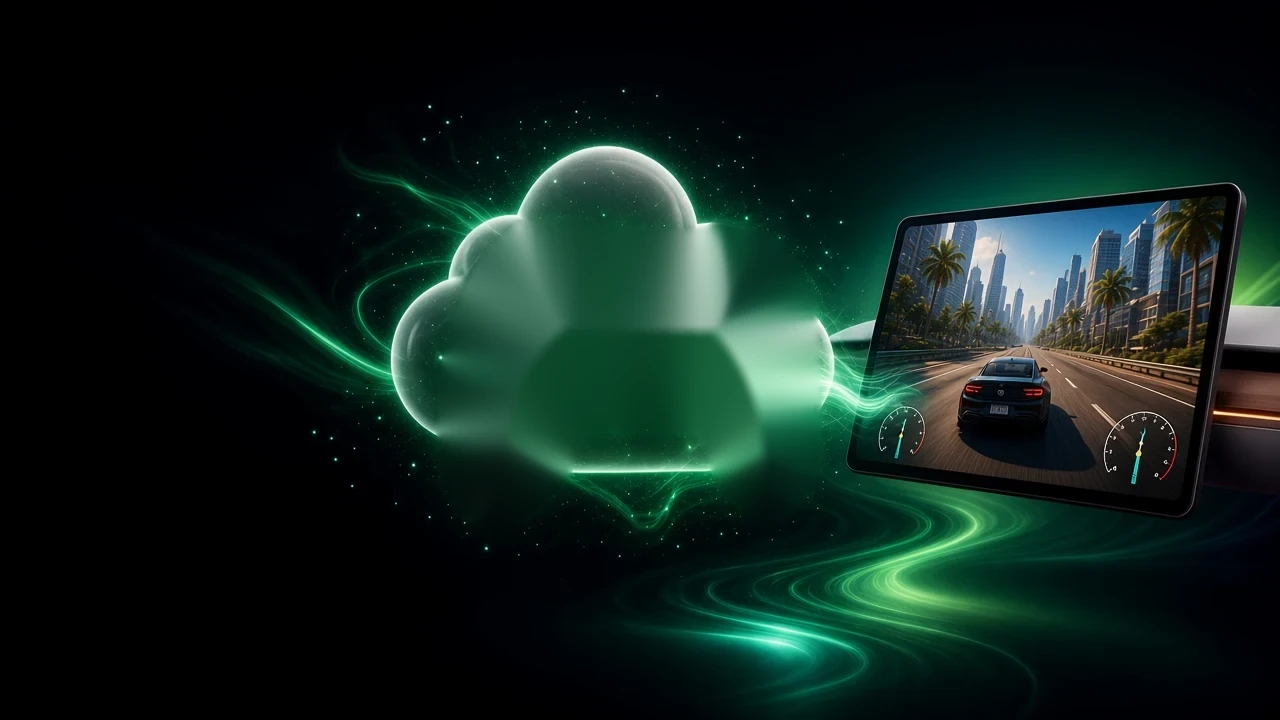
Your Xbox games on the Tesla screen with a controller — in the native browser the car already has, even in motion.
24h free · then $11.99/mo or $99.99/yr



What you can do with Xbox Cloud Gaming
Games from your Xbox account
Sign in with your Xbox account and play the cloud games your account and Game Pass plan include.Search the catalog
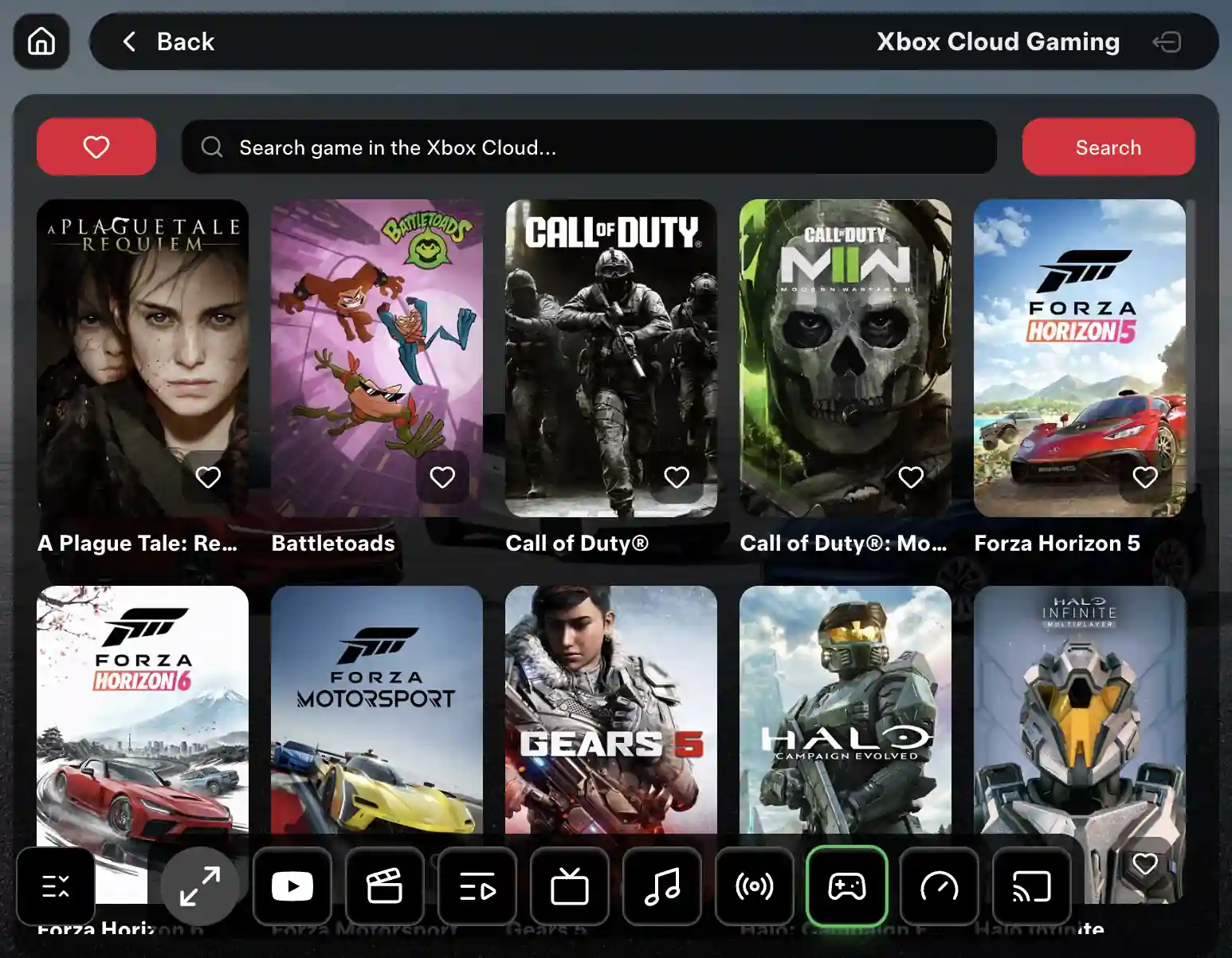
Find a game in the Xbox Cloud Gaming catalog by name, right on the Tesla screen.Favorites
Tap the heart on a game to keep it in Favorites and start it faster next time.Game page
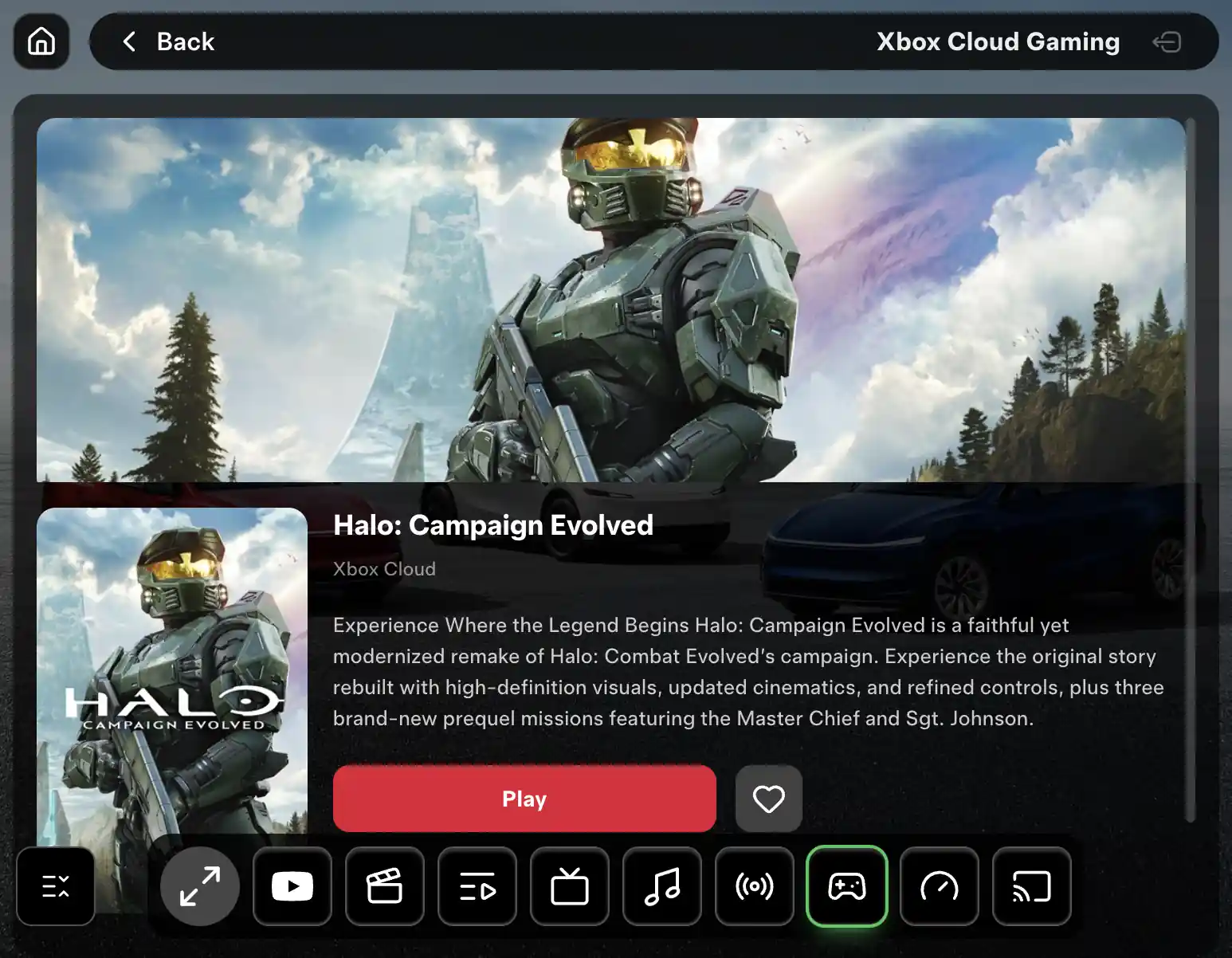
Open a game to see its cover and description, then press Play.Play with a controller
Connect a controller that works with your Tesla and play on the big screen. PS5, PS4 and 8BitDo controllers work.In motion
With Pro the game can stay on the screen while the car is moving — for passengers.
How Xbox Cloud Gaming in Tesla works
- 1Open CyberDash
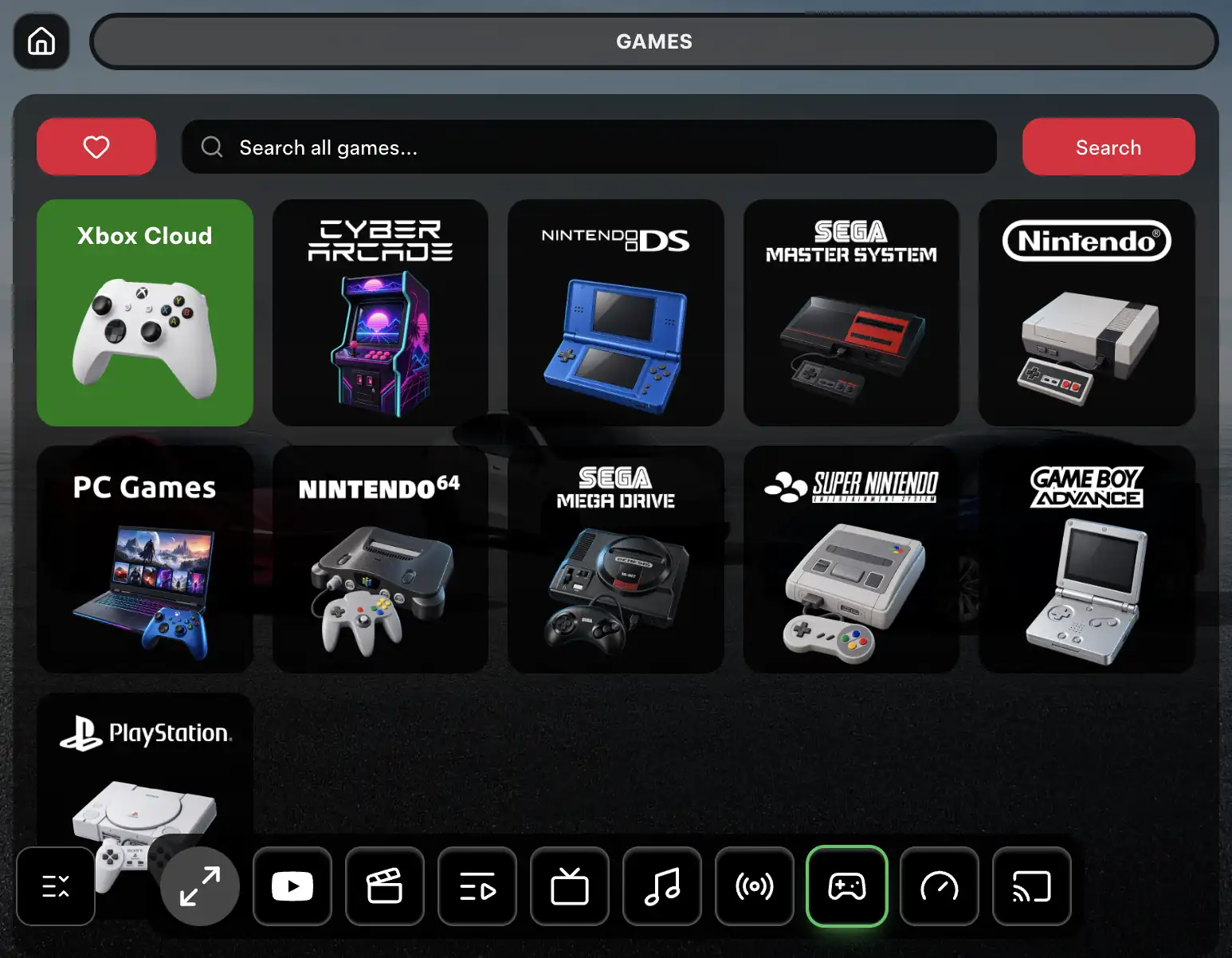
Open cyberdash.net in Tesla’s native browser and sign in. Go to In motion → Games and choose Xbox Cloud. There is no console, PC or extra box to bring into the car.
- 2Sign in with your Xbox account
Sign in with your Microsoft / Xbox account inside Xbox Cloud. Which games you can play depends on your account and your Game Pass plan — CyberDash does not sell Game Pass.
- 3Pick a game
Search the Xbox Cloud Gaming catalog by name or open one of your favorites. The game page shows the cover and description; press Play to start streaming the game.
- 4Play with a controller
Connect a controller and play on the Tesla screen, even in motion with Pro. Cloud games need a stable internet connection. Playing while driving is unsafe — gaming in motion is for passengers only.
FAQ: Xbox Cloud Gaming in Tesla
Can I play Xbox Cloud Gaming in a Tesla?
Yes. Open cyberdash.net in Tesla’s native browser, go to In motion → Games → Xbox Cloud, sign in with your Xbox account and press Play on a game. You need a controller and internet in the car.
Do I need Game Pass?
Xbox Cloud Gaming is Microsoft’s service. The games you can stream depend on your Xbox account and your Game Pass plan. CyberDash does not include or sell Game Pass.
Which controller works?
Controllers that your Tesla supports. PS5 and PS4 controllers work, and 8BitDo is supported. Some Xbox controllers have connection problems with the car, so test yours first.
Can I play while the car is moving?
With CyberDash Pro the game can stay on the screen in motion. Playing while driving is unsafe: gaming in motion is for passengers, and the driver watches the road.
Why does the game lag?
Cloud games stream live and need a stable connection all the time. Check the internet first. If it still lags, clear the browser data in the car (Controls → Service → Clear Browser Data) and sign in again.
Your games in the car start tonight.
Try CyberDash 24 hours free, then Pro for Xbox in motion
24 hours free. Then from $8.33/mo.