

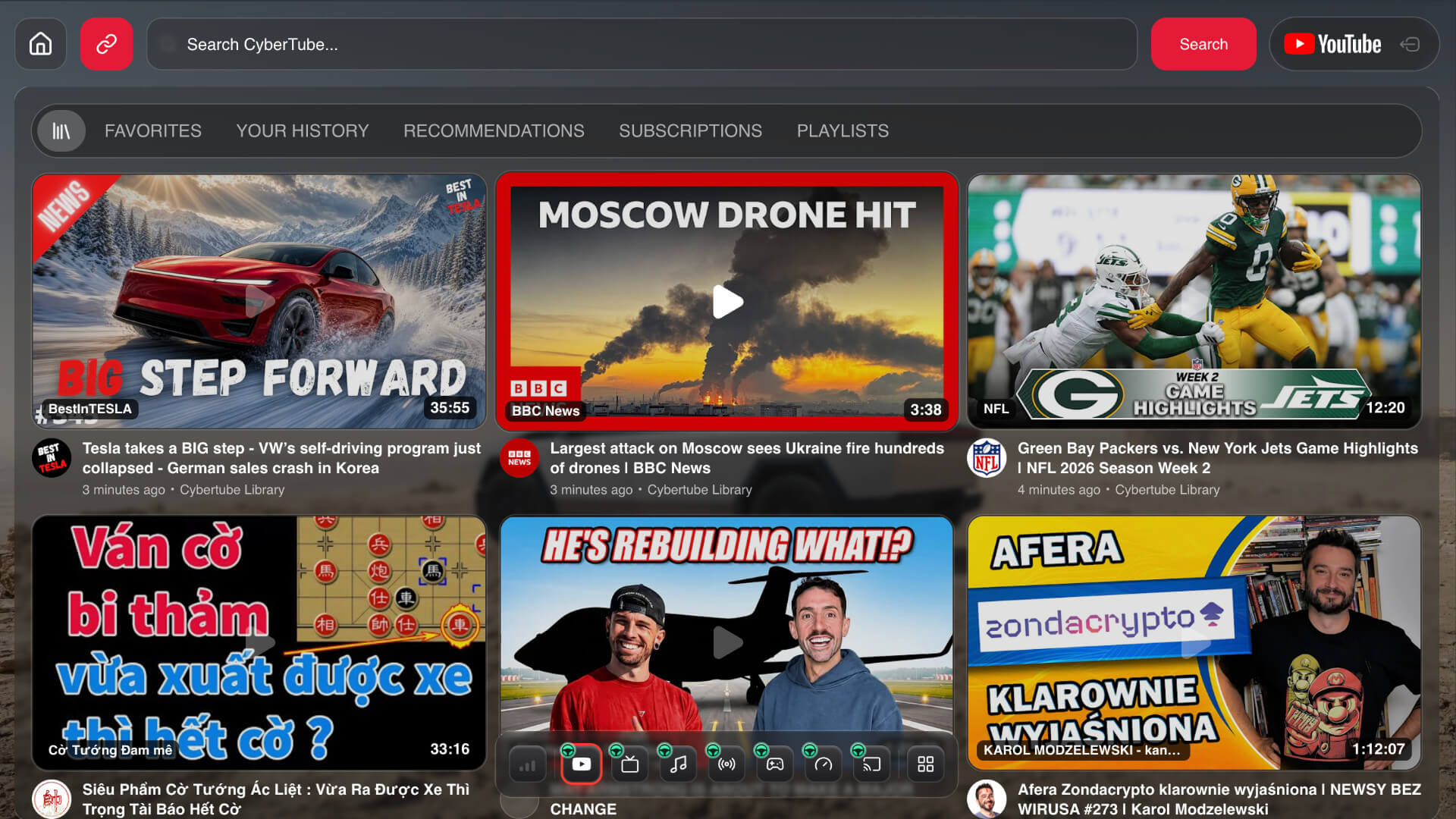
You can put YouTube on the Tesla screen without a Fire Stick, an HDMI stick, a phone mount, or anything taped to the dash. CyberTube is a Cyber Dash web app. You open it in Tesla’s native browser — the browser the car already has. It works on the front display and on the rear Tesla screen.
Why you do not need extra hardware
Fire Sticks and HDMI boxes sit on the dash, need power, and add another remote. They also do not belong in a Tesla that already has a browser. Cyber Dash does not install anything in the car. There is no sideload, no custom firmware, and no jailbreak. The vehicle is not modified, so this is not a hack of the car and it does not void the warranty.
How to watch YouTube in Tesla
- Open Tesla’s native browser in the car.
- Go to cyberdash.net and create an account. You get 24 hours of test access.
- Open CyberTube on the dashboard.
- Sign in with the YouTube account you already use — channels, playlists, subscriptions and search are there.
- To use the rear Tesla screen: park, expand the front screen into theater mode from the dashboard, start theater on the rear screen, then you can close the front and keep using the app in the back.
After sign-up the dashboard is ready. You do not sideload an APK, you do not pair a stick, and you do not mount a phone for YouTube. CyberTube is already on the Cyber Dash dashboard next to CyberTV, CyberCinema and the other apps.
YouTube on the rear Tesla screen
CyberTube works on the rear Tesla screen. While parked, expand the front screen into theater mode with the button on the dashboard, then start theater on the rear screen. You can close Cyber Dash on the front display and keep YouTube running in the back — including after the trip continues.
That is the usual passenger setup: YouTube on the rear Tesla screen for people in the second row, while the driver stays on the road. Watching at the wheel is unsafe. Use video only when it is legal.
YouTube in motion
A Pro plan unlocks video in motion, so YouTube can stay available while the car is moving — on the front display where the car allows it, and on the rear Tesla screen for passengers. Watching while you drive is unsafe. Use it only when it is legal and you can stay focused on the road.
Which Tesla models support CyberTube?
CyberTube works on Model 3 / Y, Model S / X 2021+, and Cybertruck. You open it in the car’s native Tesla browser. The service is fully optimized for HW3 / HW4 on AMD Ryzen. On Intel it also runs and stays usable. Internet in the car is required.
Do I need a Fire Stick or HDMI box for YouTube in Tesla?
No. CyberTube is a web app in Tesla’s native browser. You do not add a Fire Stick, an HDMI box, CarPlay hardware, or a phone mount. The same is true if you want YouTube on the rear Tesla screen — still no extra box.
Does it work on the rear Tesla screen?
Yes. Cyber Dash, including CyberTube, runs on the rear Tesla screen. Park, expand the front screen into theater mode from the dashboard, start theater on the rear screen, then you can close the front and keep watching in the back.
Does CyberTube include YouTube Premium?
No. CyberTube is the player on the Tesla screen. Sign in with the YouTube account you already have. Premium, if you use it, comes from YouTube — not from Cyber Dash.
What this is not
- Not a Fire Stick, HDMI box, or CarPlay dongle.
- Not a jailbreak, sideload, or custom Tesla firmware.
- Not YouTube Premium — you use your own YouTube account.
- Not a license to watch video at the wheel. Passengers can use the rear Tesla screen; the driver should watch the road.
Open cyberdash.net in Tesla’s native browser, create an account, and CyberTube is on the dashboard — front screen and rear Tesla screen, with 24 hours of test access after sign-up.